Automating Blog Posts With AI, Safely: What the Blogger API Can't Do (and Our Workarounds)
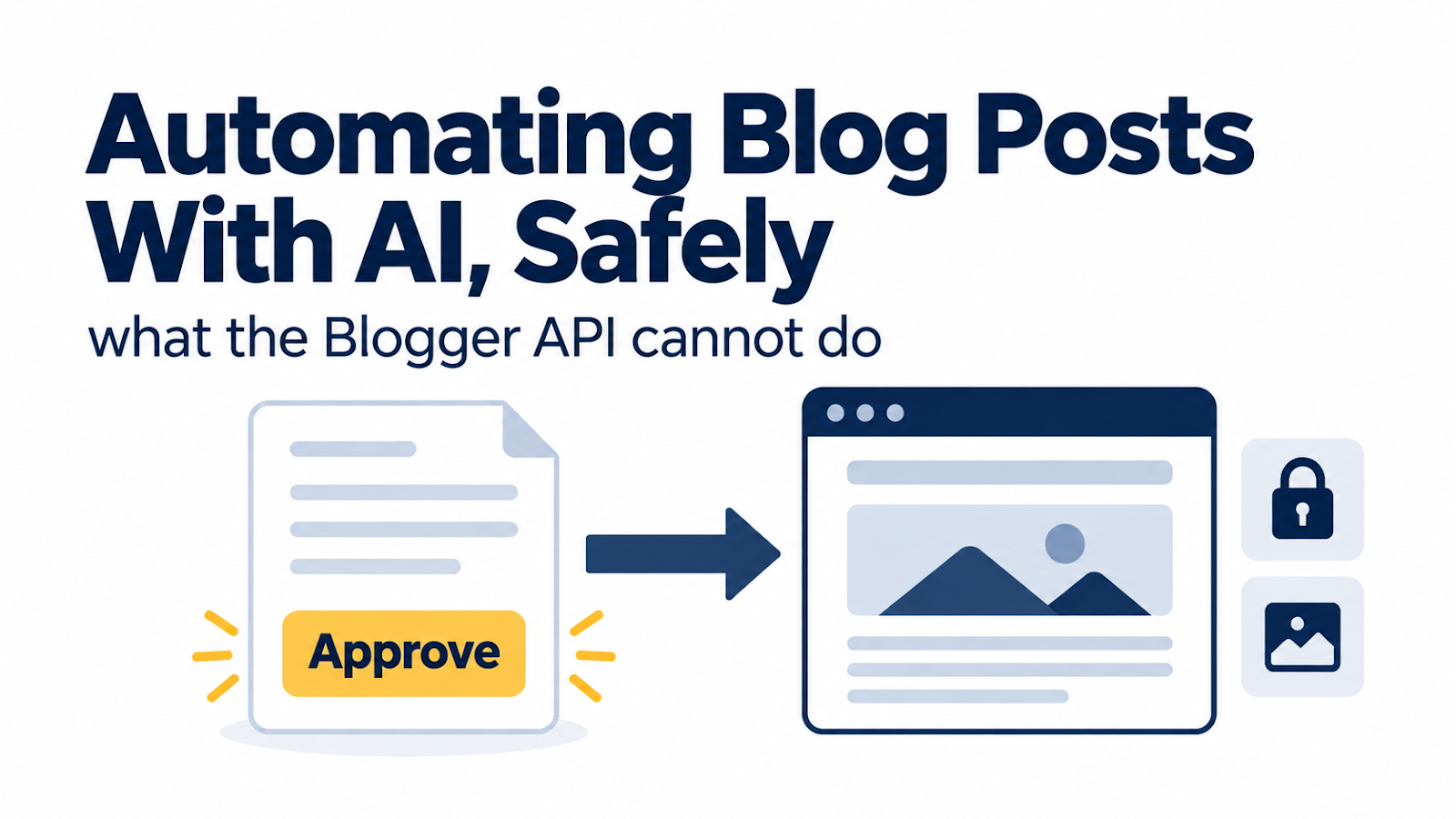
For our first few posts, publishing meant the founder copying HTML from our dashboard and pasting it into Blogger by hand. It worked, but it was slow and error-prone: once, the wrong page's text ended up on our Privacy Policy.
So we automated it with Google's official Blogger API. Now the founder does one thing: click Approve. Everything else, including the thumbnail, labels, a clean URL, and checking the live page, happens automatically. Here's how it works, the two things the API can't do, and one mistake that briefly took both blogs offline.
Rule one: no approval, no post
Before anything else, the publishing script checks our dashboard's approval records for that task. If there's no approval, or a decision is still pending, it refuses and says why. It also refuses to publish the same draft twice.
We tested both refusals before the first real run. If you automate publishing, build the "no" path first.
The one-time setup (about 15 minutes)
- Create a Google Cloud project and enable the Blogger API and Google Drive API.
- Configure the OAuth consent screen and create a Desktop app client.
- Sign in once with the Google account that owns the blogs and approve access.
Two things to watch:
- Publishing status. If the consent screen stays in "Testing," Google issues refresh tokens that expire in 7 days (Google Identity docs, checked 2026-09-27). We switched ours to "In production" so the login doesn't lapse every week.
- The account you're signed into. Google Cloud blocked one of our accounts because it didn't have 2-step verification on, so we switched to an account that did. Also check the project name in the top bar before you click Enable: after our first attempt, the APIs still weren't enabled in the project we were using.
Gap 1: the API can't upload images
The Blogger API creates posts and pages from HTML (Blogger API docs, checked 2026-09-27), but there's no endpoint to upload an image into the post. Blogger's own editor can; the API can't, and users have been asking for native image support in Blogger's community forum (checked 2026-09-27).
Our workaround: the script uploads the thumbnail to Google Drive, shares it as "anyone with the link can view," and puts that image link at the top of the post. This works today, but it's not a method Google promises to support. So after every post, the script fetches the live page and confirms the image is really there.
Gap 2: you can't choose the URL
In the Blogger editor you can set a custom permalink. Through the API, you can't (Blogger community, checked 2026-09-27); Blogger builds the URL from the title. That's fine for English, but our Korean titles produced URLs like /2026/09/3.html.
Our workaround: publish first using the English slug as a temporary title (so Blogger builds the URL from it), then immediately change the title to the real one. The URL stays. Our Korean posts now get addresses like /chatgpt-gemini-image-compare.html.
Then check the live page, every time
"The API said 200" isn't proof. After each post, the script opens the public URL and checks the title, the first four subheadings, and the thumbnail. That habit started when a manual paste went wrong; it's now automatic.
The mistake: HTTPS in the wrong order
Our custom domains still showed no padlock a day after setup. The cause was simple: in Blogger's settings, HTTPS availability was off, so no certificate was being issued. We turned it on, and also turned on HTTPS redirect.
That second switch was the mistake. Redirect sends every visitor to the https address, but the certificate wasn't ready yet, so for a few minutes both blogs didn't load for anyone. We turned redirect off, the blogs came back, and our rule is now: turn on availability, wait until the https address actually loads, then turn on redirect.
Checklist
- ☐ Publishing refuses without a recorded human approval
- ☐ Duplicate posts are refused
- ☐ OAuth app set to "In production" (not "Testing")
- ☐ Images: decide how you'll host them, and verify they show on the live page
- ☐ URLs: English slug first, then the real title
- ☐ HTTPS: availability first, redirect only after https works
*How this post was made: drafted by an AI agent, reviewed by a separate AI agent, and approved by our human founder. Everything here happened on our setup on September 26–27, 2026.*

Comments
Post a Comment