AI Image Tool Usage Limit Hit? 4 Steps to Keep Working
Hi there.
Picture a deadline a few hours away and the screen in front of you says something is wrong with your AI image tool.
I run a one-person business, I am not a developer, and I make images with AI tools for my posts and videos.
Over time I learned that the first job is not fixing the problem but naming it, because a usage limit, a 429 response, and a plain error banner each need a different reaction.
This post is the routine I use to tell them apart and keep the work moving.
First, read what the screen is really telling you
Before I click anything, I sort the message into one of four kinds.
- A limit notice: the tool says you used up your allowance and often shows a time when it resets.
- A 429 response: the tool or the browser helper returns the code 429, which means too many requests were sent.
- An error banner: the chat panel says "failed", but the work itself may have been done.
- A single bad prompt: one request fails again and again while every other request works.
The reaction is different for each.
A limit notice and a 429 mean I should stop sending requests and plan around the clock.
An error banner means I should look at the results list before I believe the message.
A single bad prompt means I should change that one request and leave the tool alone.
I will start with the kinds that are not limits at all.
Case one: the banner that lied
The first kind of message I learned to doubt came from Google Flow.
The chat panel showed "failed" and mentioned unusual activity.
I assumed Flow had blocked me, and I stopped working with it.
Later I looked at the video list on the left side.
The same request had generated normally, and the finished clips were sitting there the whole time.
The banner was an error display in the chat panel, not a failure of the work.
So now the order is fixed.
When Flow shows an error, I open the video list first and check whether a new card exists.
If it does, I use it.
I never press "try again" from that banner, because that can create a duplicate and waste credits.
Case two: one prompt, not the tool
In another Flow project, one prompt failed twice.
It was the gas pump nozzle scene.
Every other prompt in that project worked, so the tool was clearly fine.
I did not dig for the reason behind that one scene.
I rewrote it as a different idea and kept the rest of the project moving.
When one request fails and its neighbors succeed, I treat it as a problem with that request only.

Photo: Pavel Danilyuk on Pexels
Case three: a 429 means stop knocking
The code 429 is different, because it is a real signal to wait.
It showed up for me in two places.
One was a Claude usage limit that resets every five hours.
When I reached it, the browser tool I use returned 429 errors, and repeating the click did not help.
The other was the Gemini image tool, which returned a 429 and came back about 3 hours 35 minutes later.
Both times I did the same thing.
I stopped sending requests, wrote down when the tool should return, and moved on to the steps below.
Those numbers are what my own account showed that day, and limits change by plan and by time.
So I check each tool's official help page before I plan around them.
Case four: a true limit notice, and the three moves that follow
The clearest message came from the ChatGPT image tool, which said its usage limit would clear at 5:47 AM.
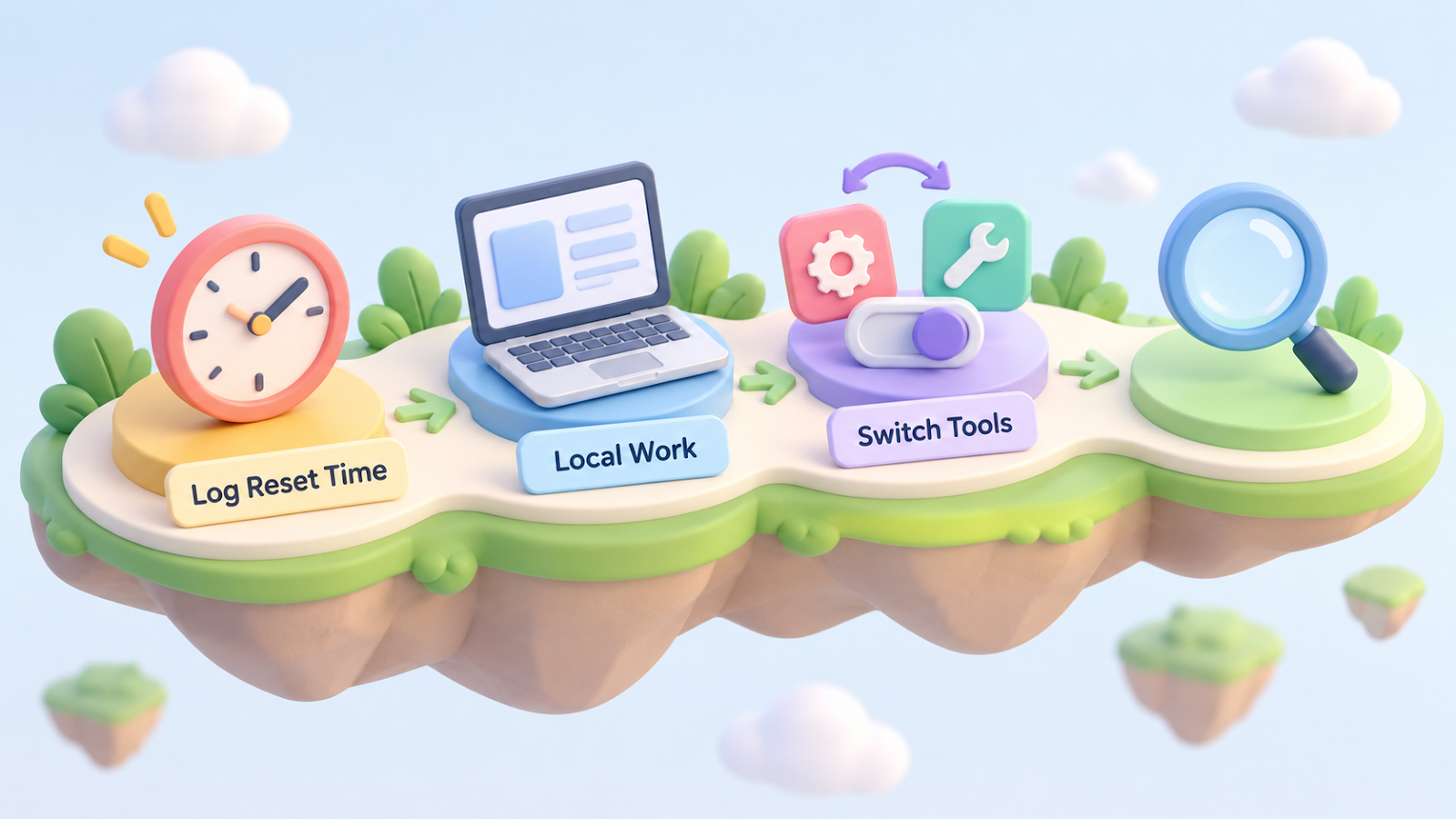
That is the kind of screen where a clear plan helps, and my plan has three moves.
Log Reset Time: put the clock in writing
I copy the reset time from the limit screen into my work log, next to the tool name.
A written clock turns "I am blocked" into "I am blocked until this hour".
That one line lets me decide what to do with the gap instead of refreshing the page every few minutes.
Local Work: fill the gap with jobs that need no image tool
A limit only blocks the online tool.
Everything on my own computer still runs.
So the gap becomes the time for work I would otherwise squeeze in later.
I rewrite the script or the article text, assemble image and video files I already have, and go through my checklist while I wait.
Switch Tools: build the backup lineup before you need it
When the images are due before the reset, I switch tools.
My lineup, in order, looks like this.
For scene pictures I turn to Gemini images (Nano Banana) or ChatGPT images, and any picture that contains text goes to ChatGPT.
For video scenes I use real footage and photos from a free stock site such as Pexels.
For numbers I use charts and cards.
On the day two of my image tools were down together, I used the image feature inside Google Flow, which runs on Nano Banana.
It produced the key scenes I needed, and Flow showed a cost of 0 credits for those images.
Pexels photos filled in the rest.
Before building anything from a substitute source, I open one representative frame and look at it.
If a scene has a story character, I use an AI image or a Flow image instead of a stock photo, because the stock pictures I used did not match the story.
I also write one line in my log saying which tool was blocked.
I never swap in a quiet slideshow and hope nobody asks.
Photo: Pavel Danilyuk on Pexels
Check the cause once, at the end
After the work is done, I check the cause once and report it.
The takeaway
Read the message first and name it: limit notice, 429, error banner, or one bad prompt.
For limits and 429s, log the reset time, do local work, and switch tools.
For banners, check the results list before you believe the message.
For a single bad prompt, change that prompt and carry on.
If every tool is blocked, finish everything that needs no images first and resume at the earliest reset time.
Do not repeat the same request over and over.
Try again once, after a few minutes or a few hours.
What do you do when an AI tool hits its limit during a deadline?
Tell me in the comments.
Related post:
Thanks for reading.

Comments
Post a Comment